Your search
1Step 1
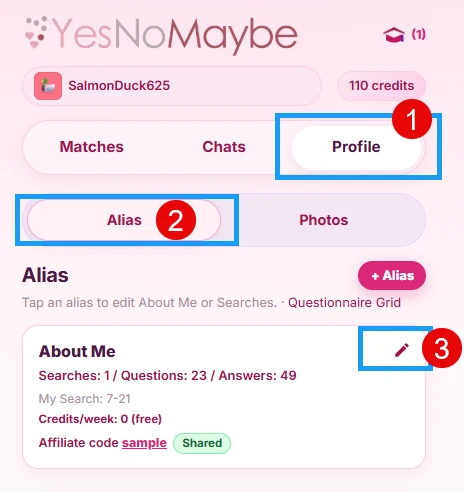
Let’s look at the “Searches” part of your profile. On the Profile tab, click “Alias”, then click the edit icon.
2Step 2
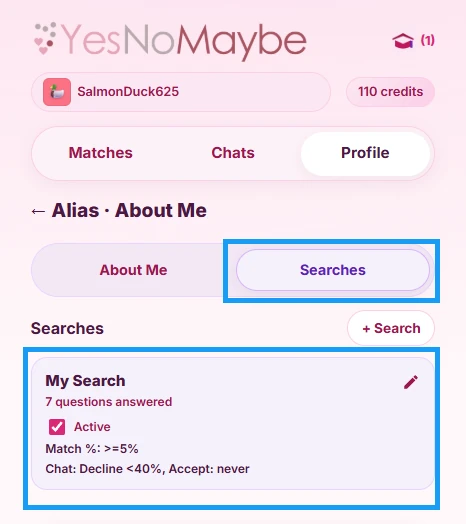
Click the “Searches” tab. The Search card shows you if it is active, how many questions are answered, and the credit cost if you are over the free limit.
3Step 3
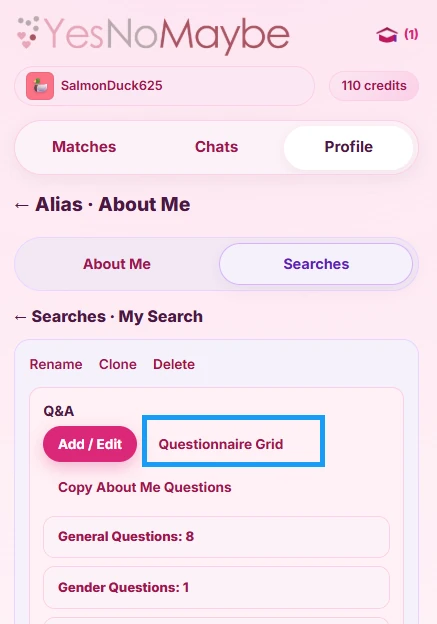
Click the edit icon on your Search card and choose the “Questionnaire Grid”.
4Step 4
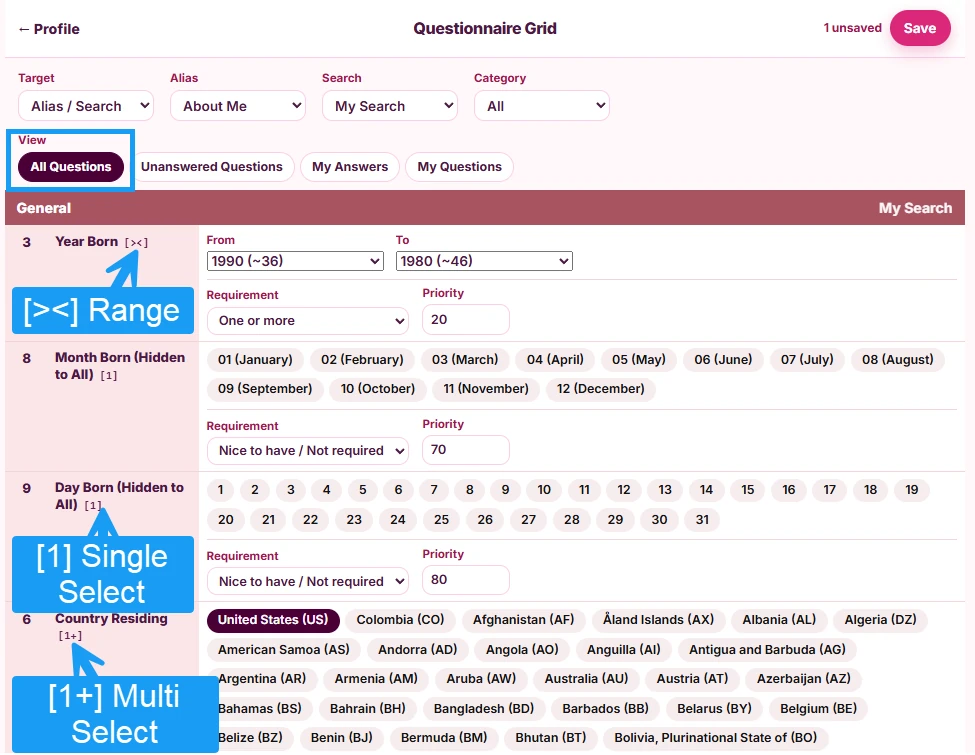
Click the “All Questions” button to see all the questions at once. Start answering questions about who you ideally want to search for. Some questions have ranges, and others are single select or multi select.
5Step 5
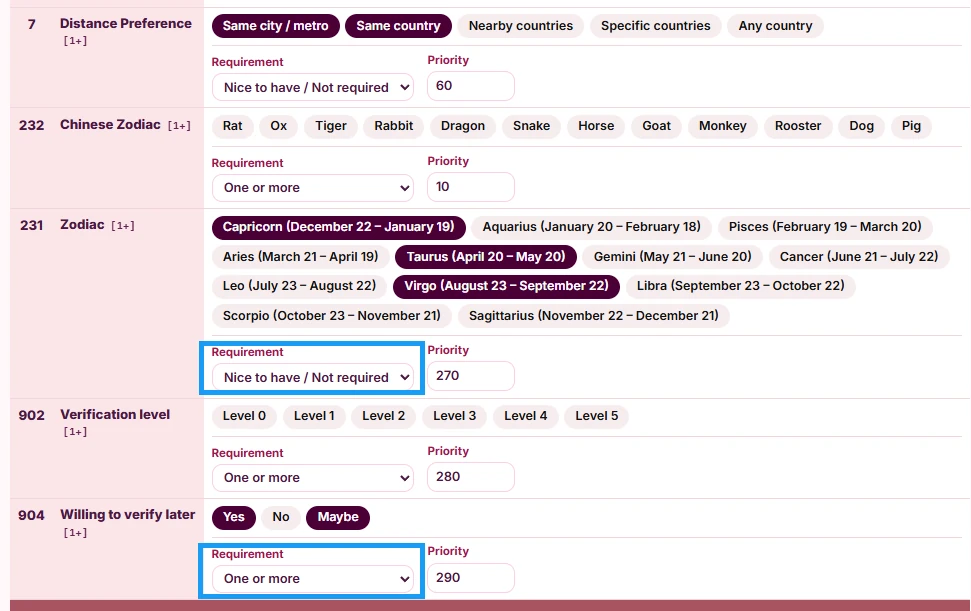
You can set requirements per question. Recommended defaults are provided, so you can leave them as-is and adjust them anytime:
- Nice to have: good if they have it, but it’s OK if they don’t have exactly your answer.
- One or more: ensures they match at least something you wanted.
- All: they have to have every answer. Avoid this unless you’re an advanced user.
- None: they can’t have any of these answers.
Answer as many questions as you want. With too few questions, your results will all seem compatible, so try to answer several. You can adjust your questions any time and your batches will adjust with them. You can also always hire a coach or personal matchmaker to help with your search, using their knowledge, experience and the analytics they have access to.
6Step 6
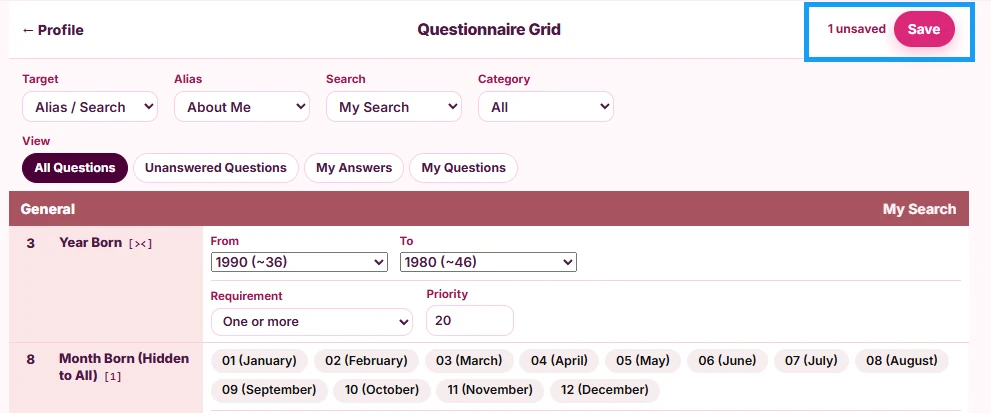
You can also set the priority. This is for advanced users, and we recommend leaving it at the default setting. Be sure to hit the “Save” button when you’re done with your questions, or anytime along the way.
7Step 7
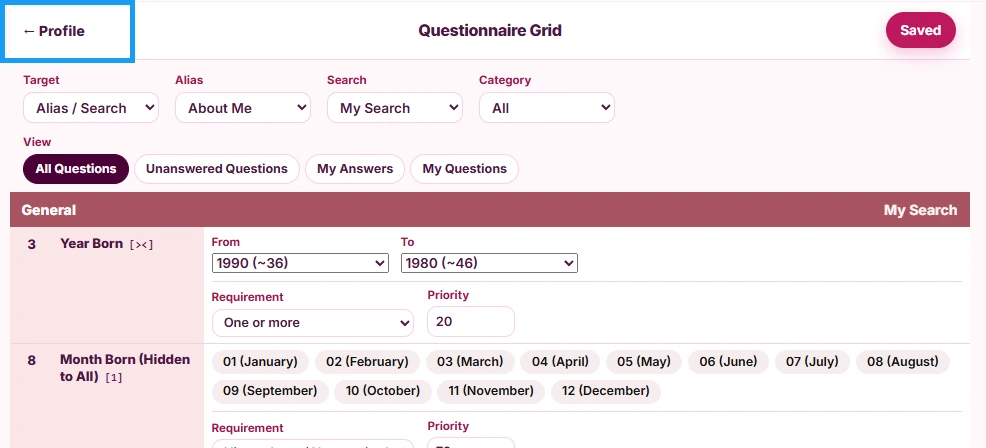
You can return to your profile by clicking the “Profile” button.
8Step 8
Matches are delivered on “Compatibility Percentage”. You set the minimum match percentage: how many of your questions must match before that match is delivered. A lower number means more people will be sent to you. You can always move matches into “Yes”, “No” or “Maybe”, and you can change the match percentage threshold at any time.
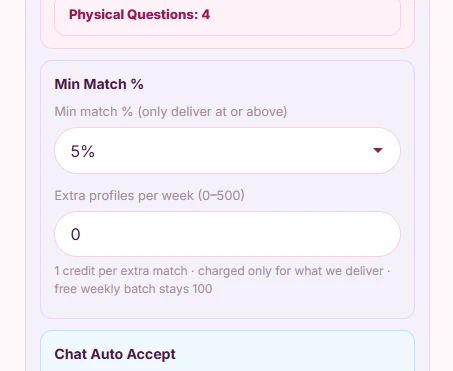
9Step 9
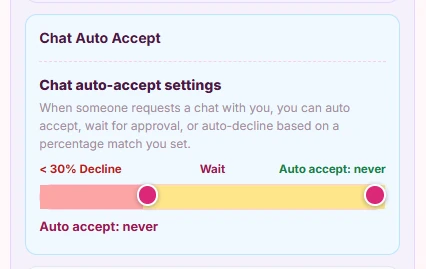
Chat requests are only available when both sides choose “Yes”. You can auto-accept a chat request when the match percentage is over a minimum amount, and auto-decline requests below a set percentage. Anything in between waits for you to approve.
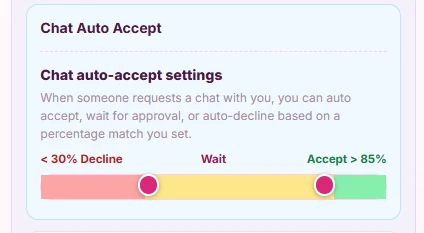
10Step 10
If you set auto-accept to “never”, you will always confirm chat requests manually.