Photos
1Step 1
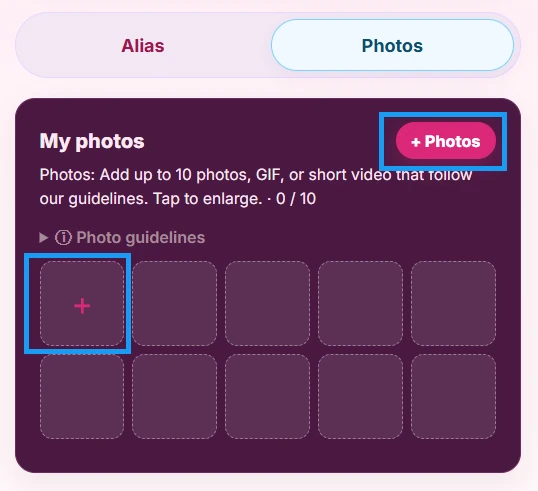
Let’s take a look at your Photos tab. You can add photos with the “+ Photos” button in the corner, or tap the “+” in the first empty square — both open the same upload flow.
2Step 2
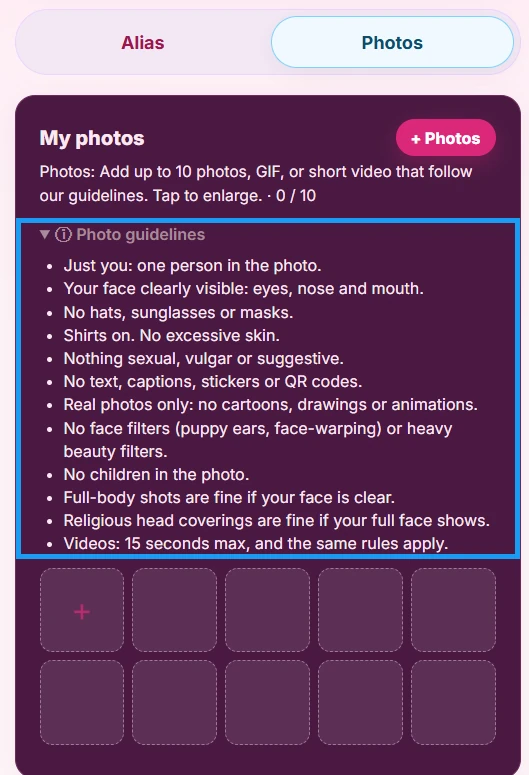
Familiarize yourself with the photo guidelines so the photos you upload meet our standards.
3Step 3
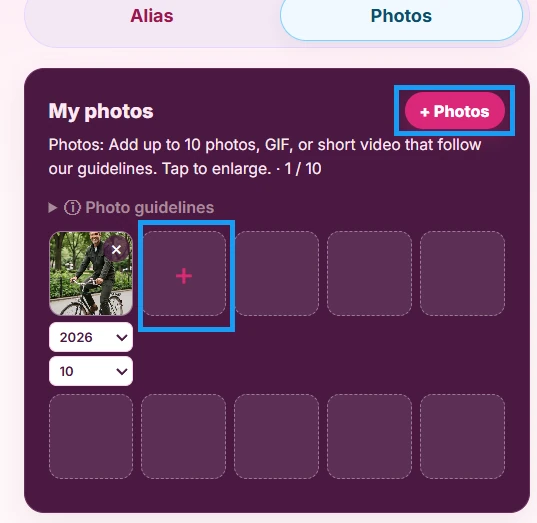
Click the plus icon, choose a photo, then add the year and month the photo was taken. The “+” moves to the next empty square.
4Step 4
Continue adding up to a maximum of 10 photos. You can also upload short 15-second videos that need to meet the same guidelines. Click any photo to enlarge it. Clicking “X” deletes it so you can upload a new one. Year and month taken are required on each photo.
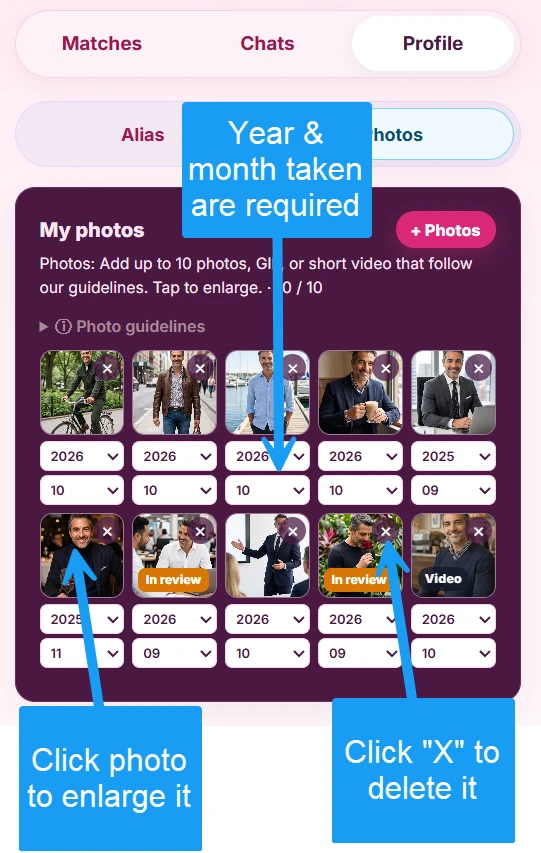
5Step 5
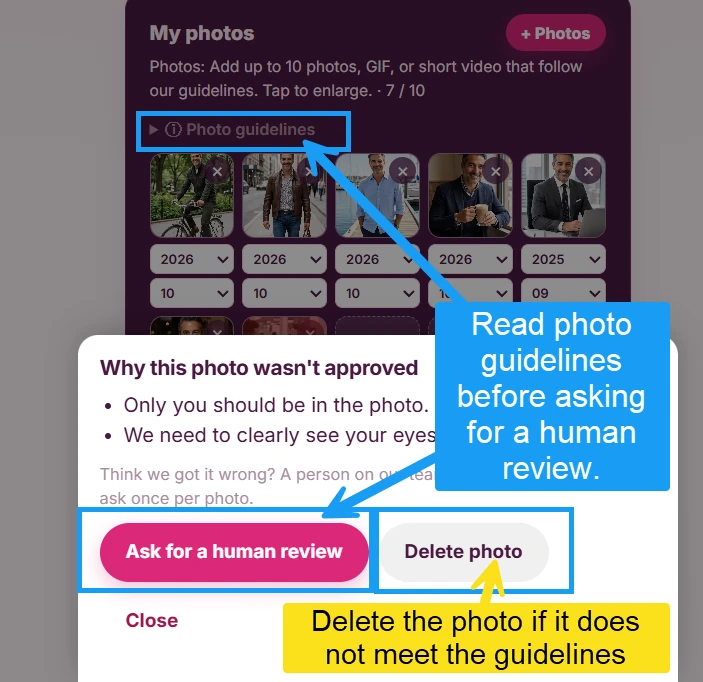
If you get a rejection warning, make sure the photo meets the guidelines, or click the red label to understand why.
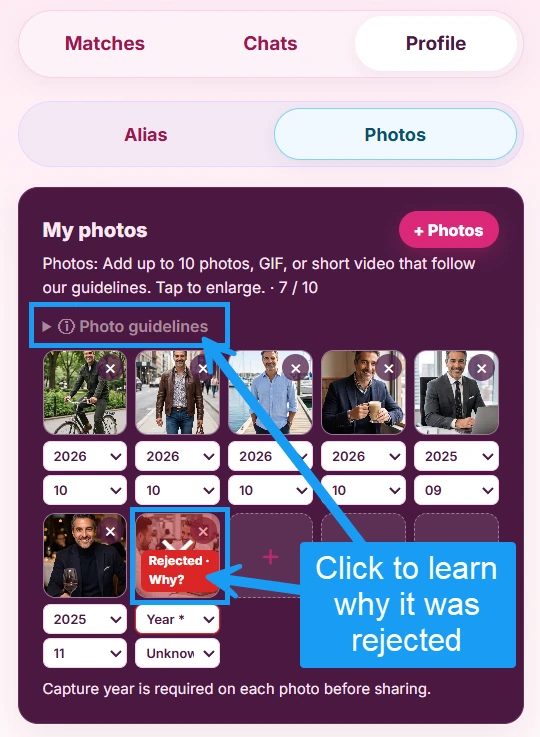
6Step 6
If you feel a human review is needed, click that button. You can also delete the photo and upload a new one. Photos only get shared when you approve them to share for a match.